
Adding a Send Email Function
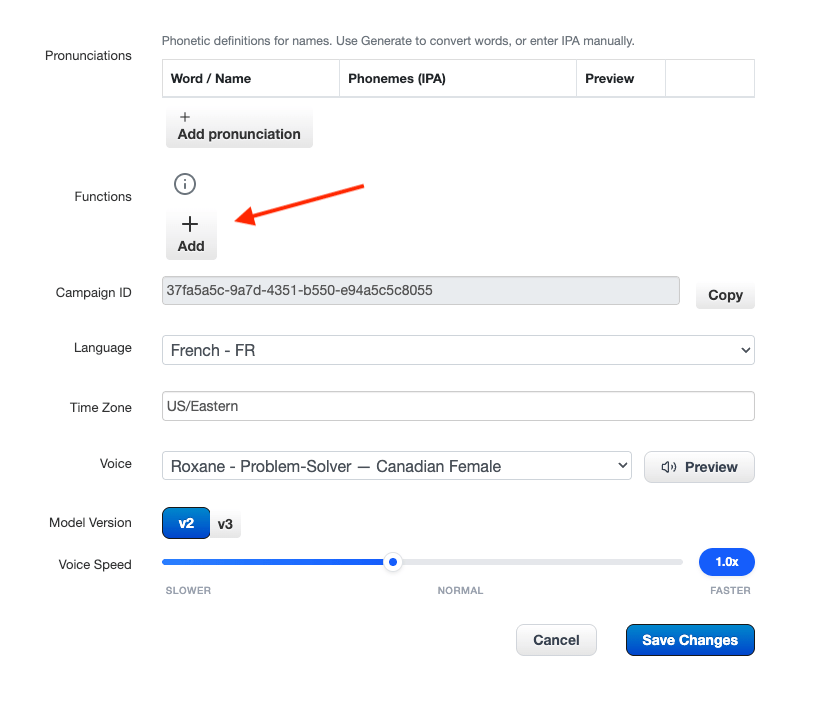
To add a Send Email function to your agent:- Log into your account and navigate to the agent editor.
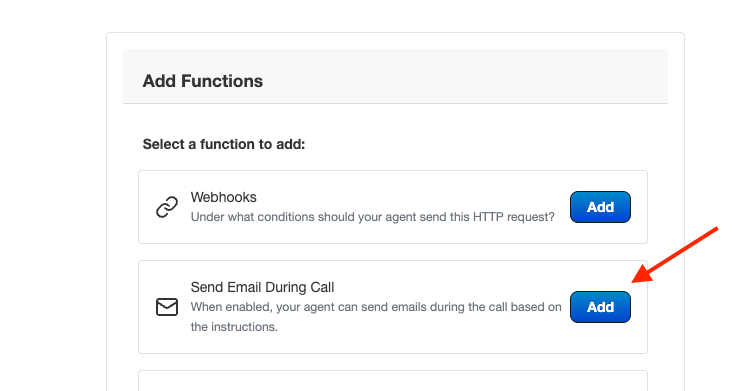
- Click the Add button in the Functions section and then select the “Send Email During Call” function.
Configuring the Send Email Function
Once added, you need to provide instructions to the agent on how and when to use the Send Email function. You will specify:- Conditions: When you have captured and confirmed the caller’s email address.
- Email Recipients: The confirmed caller’s email address.
- Content: Any specific information you want added into the email including URLs and links.
Example Instructions
Here is an example of how you might configure a Send Email function:Use Cases
Send Email functions can be used in various scenarios:- Custom Booking Links: Email your custom booking links to callers.
- Content Delivery: A subscriber or fan calls requesting access to exclusive content.
Using a Template Instead of Free-Form Content
Rather than letting the agent write the subject and body from scratch, you can bind the Send Email function to a reusable email template (subject, HTML body, and placeholder tokens like{{caller_name}}) managed from the Email Templates page. When a
template is selected, the agent only supplies the recipient address and any
agent-collected values the template needs — the subject and body are rendered server-side
from the template. Ad-hoc mode (no template selected) works exactly as described above.
See the Email Templates API reference for the
full parameter/token reference.
Availability
Email Templates is gated by Feature Administration. If a partner or reseller locks it, the Email Templates page is hidden and creating, editing, or binding a template to an agent is blocked — but an agent already bound to a template keeps sending, and ad-hoc Send Email (no template) is unaffected either way. The block is on changing the binding, not on the agent. While locked you can still save the agent’s other settings with its existing template left in place, and you can still remove a template from an agent — only selecting a new or different one is refused. This holds for the dashboard and thePUT /v1/agents/{agentId} API alike (Connect has no
template selector on its agent form — it simply preserves an existing binding on save). The
API refuses an arming write with 403 forbidden and a message naming the locked feature;
the Email Templates endpoints themselves use 403 email_templates_locked instead.
Explore our functions to see how Telzino can transform your business interactions!