
This page covers the Connect App. In the Telzino Dashboard, call logs are under Reports → Call Logs (with SIP Call ID, phone, Direction, Tasks and Corrections) and on each agent’s Call Logs tab. See Reports.
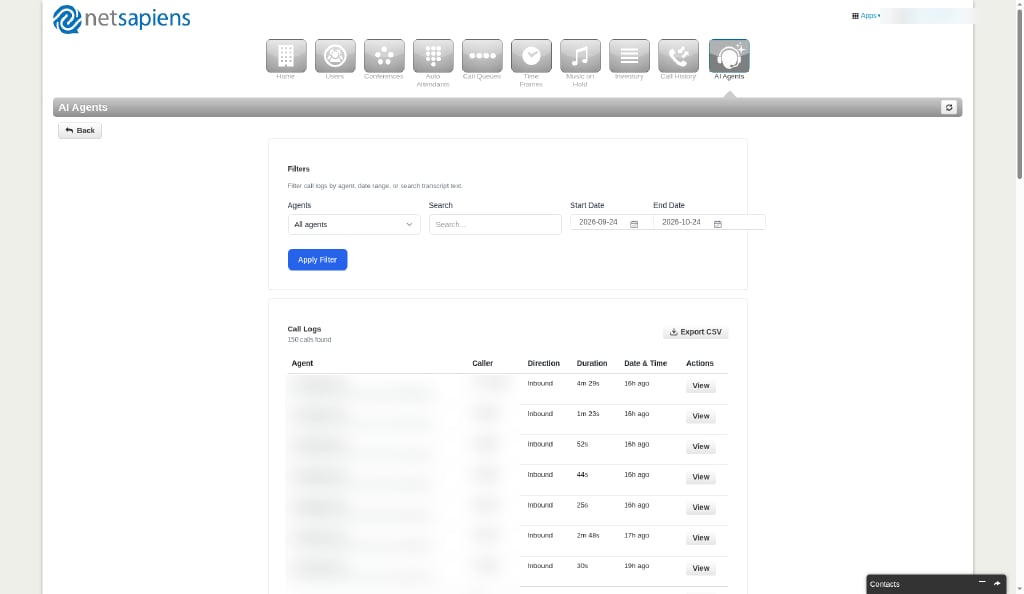
Filtering Call Logs
The Filters section at the top of the page lets you narrow down the call log results:- Agents — Dropdown to filter by a specific agent or view all agents
- Search — Free text search across transcript content
- Start Date / End Date — Date range pickers to view calls within a specific period
Call Logs Table
The call logs table displays matching results with a count (e.g., “143 calls found”). The table has the following columns:- Agent — The name of the AI agent that handled the call
- Caller — The caller’s phone number or extension (shown as “unknown” for unidentified callers). Calls made in your browser from an agent’s Test Agent page show Test call with a Test badge instead.
- Direction — Inbound or outbound
- Duration — How long the call lasted (e.g., “1m 7s”, ”55s”)
- Date & Time — When the call occurred, shown as relative time (e.g., “15h ago”, “3d ago”)
- Actions — A View button to open the call transcript
Exporting Call Logs
Click the Export CSV button in the top-right corner of the call logs table to download all filtered results as a CSV file for offline analysis or reporting.Viewing a Call Transcript
Click the View button on any call log entry to open the Call Transcript modal. This provides the full details of the call.Call Details
The top of the transcript modal shows a summary of the call metadata:- Agent and Agent ID — Which AI agent handled the call
- Caller — The caller’s phone number, “unknown”, or Test call for a browser test call
- Direction — Inbound or outbound
- SIP Call ID
- Response Time — How fast the agent replied: the median and the longest reply, and how many replies were counted
- Duration — Total call length
- Date & Time — The exact date and time of the call
- Warm transfer — Shown when this call is linked to another by a warm transfer: Transferred to or Transferred from, with the other agent’s name. Click it to open that call.
Summary
Below the call details, an AI-generated Summary provides a concise overview of the conversation. The summary includes:- A brief description of what the call was about
- Action Items — Any follow-up tasks identified during the call
- Sentiment — An overall sentiment rating (Positive, Neutral, or Negative) based on the tone and content of the conversation
Conversation Transcript
The full conversation is displayed in a chat-style format with color-coded speakers:- AI Agent (blue bar) — Messages spoken by the AI agent
- Caller (green bar) — Messages spoken by the caller
Tool Calls
When the agent executes functions during a call, these appear inline within the transcript as Tool Call blocks. Each tool call shows:- Tool name — The function that was called (e.g.,
ns_verify_user) - Arguments — The JSON data sent to the function (e.g., extension number, PIN code)
- Result — The response returned by the function