
Billing (your plan and payments) is different from Reports → Billing Report, which shows usage by organization. See Reports.
Plans
The Plans section shows your current plan and usage:- Minutes remaining — The minutes left on your account. The same balance appears in the dashboard header in minutes and dollars.
- Current plan — The plan name with an Active badge and how this month’s charge is calculated: the plan’s monthly base price plus the number of active agents times the per-agent fee.
- Cancel plan — Cancels your current plan.
Available plans
Under Change plan, each plan card shows its monthly base price, the minutes included, the price per extra minute, the fee per agent per month, and any demo agents included. Click Switch to this plan to change plan. Current prices are shown on the Billing page in the dashboard. Demo agents within your plan’s demo slots don’t carry the per-agent fee. See Agent Billing.Estimating your monthly cost
Under Not sure which one? Estimate your month, move the Minutes per month and Voice agents sliders. The estimator shows what each plan would cost for that usage, broken down into base price, extra minutes and agent fees, so you can compare plans side by side. Estimates don’t include taxes.Payment method and prepaid balance
The Billing page also lets you manage your payment method and your prepaid balance.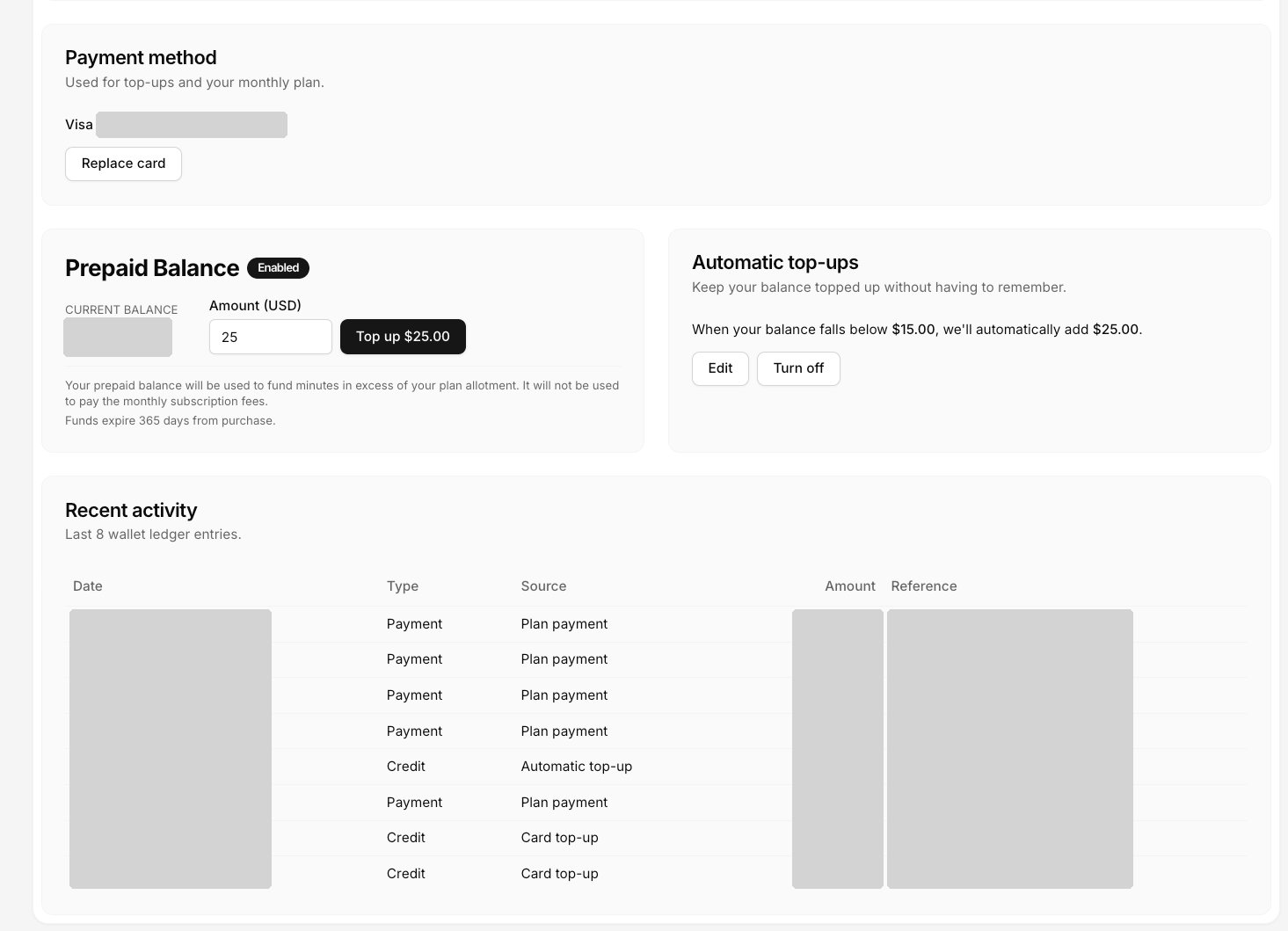
Payment method
The Payment method card is used for top-ups and your monthly plan. It shows the card brand, the last 4 digits and the expiry date. To add a card or swap in a new one, click Replace card.Prepaid balance
The Prepaid Balance card shows your current balance. To add funds, enter an Amount (USD) and click Top up. The prepaid balance pays for minutes beyond your plan’s included minutes. It does not pay for the monthly subscription, which is charged to your payment method. Funds expire 365 days after purchase.Automatic top-ups
The Automatic top-ups card shows your rule, for example “When your balance falls below $X, we’ll automatically add $Y”. Click Edit to change the threshold or amount, or Turn off to stop automatic top-ups.Balance notifications
The Balance notifications card sets when you’re warned about your balance. Click Edit to change:- Notify when balance is at or below ($) — Your low-balance threshold in US dollars. Set it to 0 to get only the zero-balance email.
- Email addresses — Who gets the emails: up to 10, one per line or separated by commas. Leave it empty to send no balance emails.
balance.low webhook event. The card is shown once billing is turned on for your account.